Position Structure
This window lets the user view a diagram that displays the hierarchy of different positions in a company or organisation.
Prerequisites
Rules and Guidelines
-
The "Desktop to Use" field in the Define Users window must be set to C for the user to access this functionality. This is not available using IE mode.
-
The user will select from the list which position they want as the top level and upon selecting it the top two levels from that point will be displayed.
-
Below each position, there will be a
 sign indicating lower levels; when clicked, the levels belonging to that particular position will be displayed.
 - Click on the button to display additional Organisation levels under the top tree level.
- Click on the arrow on top of each unit to display a context menu.
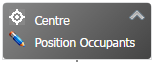
- Clicking on the "Centre" button will move the Org Chart to the centre of the screen for easy viewing.
-
Clicking on "Position Occupants" will display a pop-up window showing the employees occupying the selected position.
Field Information
 Position ID
Select from the drop-down the Position ID in order to view its Org Chart.
 2024
2024